Image to PDF - PDF Maker
- 4.9
- Rating
- 50.00M
- Installs
- Free
- Price
 Analysis by App-foxy
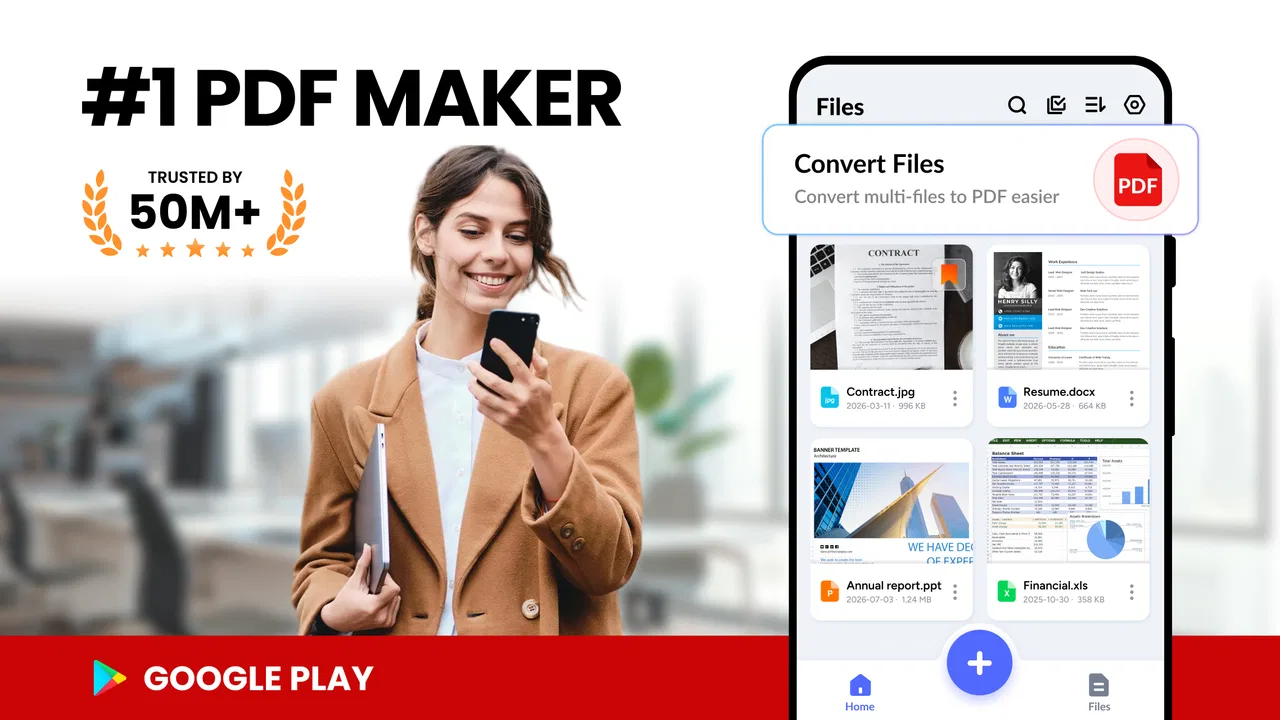
I noticed Image to PDF - PDF Maker because it solves a small but persistent phone problem: turning pictures into a document I can actually send, print, or keep organized. After using it as a productivity tool, I found its appeal is immediate. I can select images, create a PDF, and compress the result without opening a complicated desktop-style editor. That simplicity is the main reason it feels useful during the first week.
The app is made by Simple Design Ltd. and is free to install, with optional in-app purchases priced at $1.99 per item. It is suitable for Everyone and works on devices running Android 6.0 or later. The current version is 1.7.3, and its popularity is hard to ignore: it has passed 50 million installs, with a 4.9 average from around 2.2 million ratings and about 12 thousand written reviews. Those figures do not replace personal testing, but they do suggest that the basic image-to-document workflow is meeting a common need.
Why the first week feels so easy
My first impression was that the app understands what most people mean when they search for an image-to-PDF tool. I was not looking for a full office suite, a document-management platform, or a design program. I wanted to gather photos and end with one PDF. The focused approach makes the learning curve short, especially for someone who rarely creates documents on a phone.
You May Also Like

 Blood Strike: 2.5 Anniversary
Blood Strike’s Loadouts Turn Every Drop Into a Tactical Gamble
A close look at Blood Strike’s custom loadouts: how fast access to signature weapons reshapes its battle royale rhythm, rewards preparation, and narrows the gap between fights.

 Pandora - Music & Podcasts
Pandora’s Music Is Easy to Start, but Harder to Recover
Pandora’s strength is its low-effort path from a seed to a station. Its weak spot is how much confidence it asks you to place in connection, setup, and quiet recovery.

 8 Ball Pool
 Is Built on Rivalries, Rematches, and Routine
A close look at the rivalries, rematches, shared routines, and unanswered safety questions that turn a quick pool match into a persistent mobile community.

 Samsung Music
’s Quiet Strength Is Playing What You Already Own
Its reach comes less from spectacle than from dependable access to a personal library. That simplicity is both the app’s strongest retention engine and its ceiling.

 AccuWeather: Weather Radar
AccuWeather Review: A Quick, Clear Forecast for Everyday Decisions
For everyday plans, the best forecast is the one you can understand quickly. AccuWeather makes rain timing, radar, and local conditions easy to act on, with a few trade-offs.

 Hill Climb Racing
Why Hill Climb Racing Still Turns Crashes Into One More Run
A tiny car, a bumpy hill and one more upgrade: Hill Climb Racing keeps resurfacing because its simple chaos makes every near-miss feel personal.
More From Our News Desk



A practical example is a travel receipt folder. Instead of sending several separate photographs to myself, I can select the images, arrange them into one file, and share that document. The same workflow works for handwritten notes, school worksheets, delivery paperwork, warranty images, and pages photographed from a book. The app is most convincing when the source material already exists as pictures and the goal is simply to package it neatly.
The image selection stage deserves a little thought. I get better results when I take the photos first, check that every page is readable, and only then import them. That sounds obvious, but it avoids a common frustration: creating a PDF and discovering later that one page is blurred, sideways, or cropped too tightly. The app helps with conversion, but it cannot rescue a photograph that was poorly captured in the first place.
One useful habit is to photograph pages in the same order I want them to appear. If I am collecting a multi-page form, I place the pages on a flat surface, keep the phone parallel to the paper, and review the sequence before finalizing. This reduces the need to rebuild the document. For a quick one-page conversion, that preparation may feel unnecessary; for a ten-page bundle, it saves time.
The compression support is more important than it sounds. Photos can create surprisingly heavy documents, particularly when I use several high-resolution images. A smaller PDF is easier to attach to a message and less awkward to store. I treat compression as a trade-off rather than an automatic improvement: a file becomes more convenient, but excessive reduction can make small writing harder to inspect. For receipts or notes, I prefer checking the smallest text after compression before deleting the original images.
Where it fits better than the usual alternatives
The usual alternative is to keep the pictures in the gallery and send them one by one. That works for two casual snapshots, but it becomes messy when the recipient needs a single document. Another option is a broad scanning or office app, which may offer more controls but can feel excessive for a simple conversion. This app earns its place by staying closer to the narrow task.
I would also choose it over manually inserting images into a word processor when speed matters. A word processor is better if I need paragraphs, headings, editable text, or a carefully designed page. Image to PDF - PDF Maker is better when the images themselves are the content and I do not want to rebuild the page around them.
That distinction matters for expectations. This is not the app I would reach for when I need to revise the wording inside a photographed contract or turn handwriting into editable text. It is a converter and compressor, not a replacement for a full document editor. If the finished file must contain selectable, searchable text, I would look for a tool designed around optical character recognition instead.
Small workflow choices that improve the result
I found three practical choices make the experience noticeably smoother. First, I keep the original photographs until I have opened the finished PDF and checked every page. Conversion is quick, but confidence comes from reviewing the result rather than assuming it is correct.
Second, I create separate PDFs for separate purposes instead of putting every image from one day into a single file. A document for receipts, another for schoolwork, and another for household records is easier to share and find later. The app makes the conversion easy; the organization still depends on me.
Third, I use compression according to the destination. A document intended for quick messaging can usually prioritize a smaller size, while a page that may be printed deserves a more careful quality check. This is a useful trade-off that a short store description does not explain: the best setting depends on whether the PDF is for viewing, archiving, or printing.
What remains valuable after the novelty fades
After the first week, the question changes from “Can this make a PDF?” to “Will I keep using it?” For me, the answer depends on how often I handle paper-like information through my phone. Someone who regularly receives photographed documents, saves receipts, or submits image-based forms can build a recurring habit around it. Someone who only needs one conversion every few months may find that a browser tool or an existing phone feature is enough.
The recurring value comes from reducing friction at the exact moment a document needs to leave the photo gallery. When I have several pages, the difference between separate images and one compact PDF is meaningful. The file is easier to name, attach, and recognize later. That is not an exciting feature, but it is the kind of quiet usefulness that can justify keeping a small app installed.
I especially like the fit for temporary projects. During a move, I might photograph invoices, inventory notes, and signed paperwork. During a course, I might collect handouts or completed exercises. For a family member, I might combine images of a form into one file that is easier to send. In each case, the app is valuable because the need appears repeatedly over a short period, even if it is not an everyday activity forever.
Its free price also lowers the commitment required to test that habit. I can try the basic workflow without treating the app as a major purchase. The optional $1.99-per-item purchases may be reasonable for someone who uses it regularly, but I would still judge them by whether they remove a real annoyance in my routine. A person who only converts an occasional image should not feel pressured to spend money simply because the app is installed.
The large user base gives the app a reassuring sense of maturity, while the high average rating indicates that its central purpose is landing well for many people. Still, popularity does not make every workflow ideal. My own long-term view would depend less on the rating and more on whether the app consistently produces documents that are readable, appropriately sized, and easy to locate afterward.
Maintenance is light, but organization is still my responsibility
The app itself does not create much maintenance work in my routine. The larger burden is what happens around it. If I convert files without choosing useful names or storage locations, I eventually end up with a folder full of indistinguishable PDFs. The converter can finish the technical step, but it cannot decide whether “document” is a useful name three months later.
I recommend adopting a simple naming pattern immediately after creating a file: subject first, then a date or identifying detail. For example, a receipt bundle is more useful when its name identifies the shop or purpose rather than relying on a generic label. This is not a glamorous tip, but it is what turns a one-time conversion into a dependable record-keeping habit.
I also avoid keeping every intermediate image forever. Once I have verified the PDF and know that the original photos are safely stored or no longer needed, I can remove duplicates. That prevents the gallery and file storage from filling with repeated copies. On the other hand, I keep originals when the PDF is an important record or when I may need to create a higher-quality version later.
For recurring paperwork, I would establish one repeatable routine: photograph clearly, import in order, compress only as much as necessary, inspect the final pages, rename the file, and then share or archive it. The value of the app grows when this sequence becomes automatic. Without that routine, it remains a handy button I remember only when I am already in a hurry.
Where fatigue can set in
The same narrow focus that makes the app approachable can become limiting. If I want to edit text, annotate heavily, sign a document, rearrange complex layouts, or collaborate on a file, I may quickly outgrow it. In those situations, a complete PDF editor or office application is the better choice, even if it takes longer to learn.
There is also a quality-versus-size decision every time I compress a file. A small PDF is convenient, but a page containing fine print may need more detail than a casual screen view suggests. I do not treat compression as a setting I can apply blindly. I check the result at a useful zoom level, especially when the document includes numbers, addresses, or terms that must be read accurately.
Another source of fatigue is repeated correction. If I regularly photograph pages at awkward angles, with shadows or glare, the conversion stage becomes only one part of a longer cleanup process. The app is not a substitute for careful capture. For important documents, I take an extra moment to improve lighting and alignment before importing rather than expecting the final PDF to hide every flaw.
People who prefer cloud-centered document systems may also want a different solution. If the main requirement is automatic synchronization, shared folders, searchable archives, or team review, a dedicated storage or document-management service may provide a stronger long-term home. This app makes a PDF; it does not need to become the entire document system.
Privacy-conscious users should make their own judgment about the documents they process and where they are comfortable storing or sharing them. I would be particularly careful with identity papers, financial records, and signed agreements. The convenience of creating a PDF should not encourage careless forwarding or unnecessary copies. My rule is simple: convert only what I need, review the recipient, and keep sensitive files organized rather than scattered.
Who should keep it installed?
I think it is a strong fit for students, renters, freelancers, parents, travelers, and anyone who turns paper or photos into attachments more than occasionally. It is also useful for people who find full office suites intimidating. The focused workflow means I can complete a small task without navigating tools that have nothing to do with the document I am making.
I would recommend it to a friend who says, “I have several pictures of this paperwork, but I need one PDF.” That sentence describes the app’s best use case almost perfectly. It is quick enough for spontaneous jobs, while compression gives the result a practical advantage over simply sending the original images.
I would not recommend relying on it as the main tool for professional document production. If the work involves editable text, advanced page design, detailed markup, searchable scans, or collaborative review, a more specialized application will be worth the extra complexity. The right decision is not based on whether this app can create a PDF; it is based on whether image-based PDFs are actually the documents I need.
The Everyone age rating makes it approachable for a broad audience, and the Android compatibility beginning with version 6.0 means it can serve older devices as well as newer ones. I still think the best experience comes from users who are willing to review and organize their files rather than expecting the conversion alone to solve every document problem.
My long-term verdict
Image to PDF - PDF Maker earns lasting space on my phone when I use it as a small, repeatable utility rather than a novelty. Its first-week appeal comes from immediate results: photos become a single PDF, and compression helps keep that file manageable. Its month-to-month value comes from recurring situations where one organized attachment is much better than a group of loose images.
The app is not ambitious, and that is mostly a strength. Simple Design Ltd. has kept the central idea easy to understand, which is why I can recommend it without a long tutorial. The limitations are equally clear: it does not replace an editor, an OCR-focused scanner, or a complete document-management system. Knowing that boundary prevents disappointment.
My final advice is to test it with a real task rather than a random image. Convert a small set of receipts, notes, or paperwork, try compression, inspect the smallest text, and then decide whether the resulting file fits your routine. If it saves you from repeatedly sending loose photographs, it is likely worth keeping. If your needs are mostly editing and collaboration, another tool will serve you better.
For my own use, the app passes the maintenance test because it solves a recurring nuisance without demanding much attention. I would keep it installed for those moments when the gallery is full of pages and I need one clean document quickly. Its lasting value is not novelty but dependable reduction of everyday document clutter.
FAQs for Image to PDF - PDF Maker
01What features does Image to PDF - PDF Maker offer?
Image to PDF - PDF Maker allows users to easily convert images into PDF documents. It supports multiple image formats, batch conversions, and offers customization options such as page size, orientation, and margin settings. The app also provides features for editing PDFs, including rearranging pages and adding annotations.
02Is Image to PDF - PDF Maker free to use?
The app offers a free version with basic features. However, to access premium functionalities like advanced editing tools and ad-free experience, users may need to purchase a subscription or pay a one-time fee. Check the app store for the latest pricing and subscription details.
03What image formats are supported by Image to PDF - PDF Maker?
Image to PDF - PDF Maker supports a wide range of image formats, including JPEG, PNG, BMP, and TIFF. This versatility ensures that users can easily convert images from various sources into a single PDF document, making it highly convenient for personal or professional use.
04How secure is the data processed in Image to PDF - PDF Maker?
The app prioritizes user privacy and security by processing all conversions locally on the device. This means that no images or documents are uploaded to external servers, ensuring that sensitive information remains private and secure during the conversion process.
05Can I edit the PDF after conversion with Image to PDF - PDF Maker?
Yes, the app includes basic editing tools that allow users to rearrange pages, add annotations, and modify the PDF after conversion. While it may not offer the full suite of editing options found in dedicated PDF editors, it provides enough functionality for most everyday needs.
Pros
- Easy-to-use interface for quick conversions.
- Supports multiple image formats seamlessly.
- Allows batch processing for efficiency.
- Offline functionality ensures privacy.
- Fast conversion speeds for large files.
Cons
- Limited editing tools for PDFs.
- Ads can be intrusive during use.
- Free version has watermark on output.
- No cloud integration for file storage.
- Lacks advanced PDF customization options.

Image to PDF - PDF Maker
Gallery